---
title: "How to install a Quizit extension from a ZIP file - Quizit.online"
description: "Here is a step-by-step guide on how to install a Quizit extension on google chrome from a downloaded ZIP file. For Chrome to read the files correctly, the installation must be done in Developer mode.\n"
canonical_url: "https://quizit.online/docs/how-to-install-extension"
meta:
"og:description": "Here is a step-by-step guide on how to install a Quizit extension on google chrome from a downloaded ZIP file. For Chrome to read the files correctly, the installation must be done in Developer mode.\n"
"og:image": "https://quizit.online/_og/s/o_a827be7c0c7aa6ad.png"
"og:image:height": "600"
"og:image:type": image/png
"og:image:width": "1200"
"og:title": "How to install a Quizit extension from a ZIP file"
"twitter:image": "https://quizit.online/_og/s/o_a827be7c0c7aa6ad.png"
---
> Index of every page on this site: [llms.txt](https://quizit.online/llms.txt)
**Extension**·Sep 4, 2026·1 min read
# **How to install a Quizit extension from a ZIP file**
Here is a step-by-step guide on how to install a Quizit extension on google chrome from a downloaded ZIP file. For Chrome to read the files correctly, the installation must be done in Developer mode.
## Step 1: Extract the ZIP file
*Chrome will not install the extension directly from a ZIP archive.*
Locate the downloaded ZIP file on your computer:
- **Windows:** Right-click the file and select **Extract All...**, then choose the destination folder.
- **Mac:** Double-click the ZIP file for the system to automatically extract it to a new folder.
> **Tip:** Remember the location of this extracted folder – you will need it in a moment.
## Step 2: Open the Extensions management page
*Shortcut: type* ***chrome://extensions*** *in the address bar.*
Open the Google Chrome browser. In the top right corner, click the **three vertical dots** (Menu) icon, hover over **Extensions**, and then click **Manage Extensions**.
## Step 3: Enable Developer mode
*Required for installation from outside the official Chrome Web Store.*
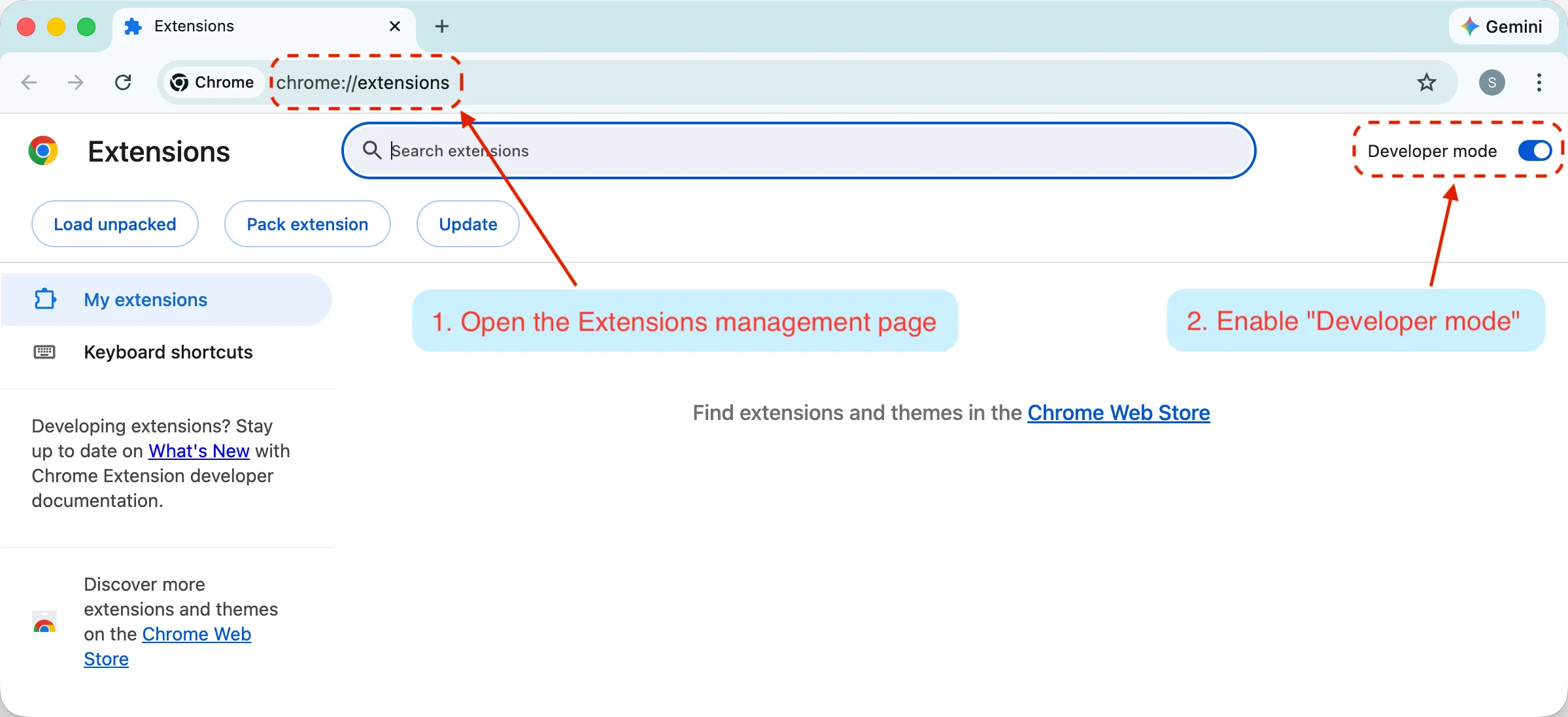
In the top right corner of the extensions page, find the toggle named **Developer mode**. Click it to activate it. It will turn blue, and new buttons will appear below the top bar.
## Step 4: Load the unpacked extension
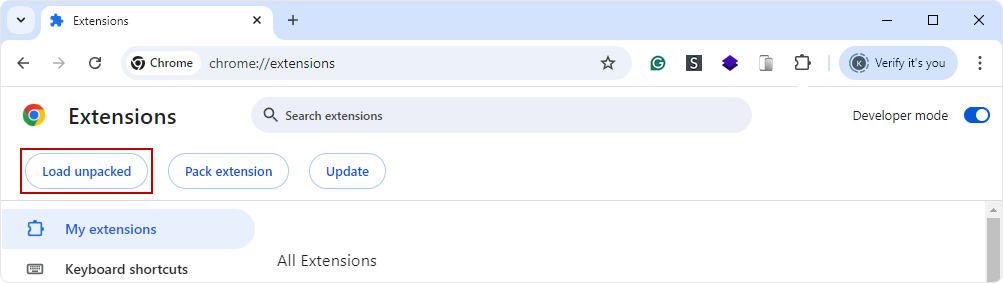
In the top left corner of the screen, click the new **Load unpacked** button.
## Step 5: Select the extension folder
A file selection window will appear. Find the **folder** that you extracted in Step 1.
> **Important:** You must select the main extension folder (the one that usually contains a file named `manifest.json` inside), and then click the **Select folder** button. Do not go inside the folder to select individual files
## Step 6: Verify the installation
Done! The extension should immediately appear in the list of installed add-ons as a new card. Make sure the small blue toggle in the bottom right corner of its card is turned on (this means the extension is active).
## **Related guides**
More guides on the same topic.
- [**Account****How to Paste Scripts in the Browser Console**
Use this guide when a support page or tool asks you to run a short JavaScript snippet in your browser console. The console is part of the browser developer tools.2 min readUpdated Sep 7, 2026](https://quizit.online/docs/how-to-paste-scripts-in-browser-console)
- [**Premium****Account****How to Cancel Your Subscription**
Cancel your Quizit.online paid plan from account settings. Your access stays active until the end of the current billing period.2 min readUpdated Aug 31, 2026](https://quizit.online/docs/how-to-cancel-subscription)
- [**Brainly****How to get answers for Brainly**
Paste a Brainly question link into Quizit to unlock the full solution without ads. Fast support for Brainly domains worldwide.1 min readUpdated Aug 31, 2026](https://quizit.online/docs/how-to-use-brainly)
## **Still need help?**
If a guide did not answer your question, reach out to us or check what each platform supports.
- [**Contact us **Email or Discord. We usually reply within a few hours.](https://quizit.online/contact)
- [**Browse platforms **See which quiz tools Quizit supports and what each one can do.](https://quizit.online/services)
```json
{"@context":"https://schema.org","@graph":[{"@id":"https://quizit.online#website","@type":"WebSite","description":"Best answers for Wayground (Quizizz), Kahoot, Wordwall, Liveworksheets and more! Quizit helps you prepare for all of your online quizzes. Years of experience allow us to serve you the fastest, safest and most reliable answers.","inLanguage":"en","name":"Quizit online","url":"https://quizit.online","publisher":{"@id":"https://quizit.online#identity"},"workTranslation":{"@id":"https://quizit.online/pl#website"}},{"@id":"https://quizit.online/docs/how-to-install-extension#webpage","@type":"WebPage","dateModified":"2026-09-04T16:57:42.424Z","datePublished":"2026-09-04T16:07:15.367Z","description":"Here is a step-by-step guide on how to install a Quizit extension on google chrome from a downloaded ZIP file. For Chrome to read the files correctly, the installation must be done in Developer mode.\n","name":"How to install a Quizit extension from a ZIP file","url":"https://quizit.online/docs/how-to-install-extension","isPartOf":{"@id":"https://quizit.online/#website"},"potentialAction":[{"@type":"ReadAction","target":["https://quizit.online/docs/how-to-install-extension"]}],"primaryImageOfPage":{"@id":"https://quizit.online#logo"}},{"@id":"https://quizit.online#identity","@type":"Organization","description":"We specialize in providing the best answers for Wayground (Quizizz), Kahoot, Wordwall, Liveworksheets, and more! Our website covers a wide range of online quiz tools, helping you prepare for all your quizzes. With years of experience, we provide the fastest, safest, and most reliable answers.","name":"Quizit online","url":"https://quizit.online","logo":{"@id":"https://quizit.online#logo"}},{"@id":"https://quizit.online/docs/how-to-install-extension#article","dateModified":"2026-09-04T16:57:42.424Z","datePublished":"2026-09-04T16:07:15.367Z","description":"Here is a step-by-step guide on how to install a Quizit extension on google chrome from a downloaded ZIP file. For Chrome to read the files correctly, the installation must be done in Developer mode.\n","headline":"How to install a Quizit extension from a ZIP file","inLanguage":"en","thumbnailUrl":"https://quizit.online/_og/s/o_a827be7c0c7aa6ad.png","@type":["Article","TechArticle"],"author":{"@id":"https://quizit.online#identity"},"image":{"@id":"https://quizit.online#/schema/image/1"},"isPartOf":{"@id":"https://quizit.online/docs/how-to-install-extension#webpage"},"mainEntityOfPage":{"@id":"https://quizit.online/docs/how-to-install-extension#webpage"},"publisher":{"@id":"https://quizit.online#identity"}},{"@id":"https://quizit.online#logo","@type":"ImageObject","caption":"Quizit online","contentUrl":"https://quizit.online/icon.webp","inLanguage":"en","url":"https://quizit.online/icon.webp"},{"@id":"https://quizit.online#/schema/image/1","@type":"ImageObject","contentUrl":"https://quizit.online/_og/s/o_a827be7c0c7aa6ad.png","inLanguage":"en","url":"https://quizit.online/_og/s/o_a827be7c0c7aa6ad.png"}]}
```
## Sitemap
See the full [sitemap](https://quizit.online/sitemap.md) for all pages.